Adding Triggers to a Script
Overview
The triggers determine when a when a script should be executed on a device. You can configure one or more schedule triggers to automatically run a script on a defined schedule. You can add triggers to an existing script or while creating a new script. The available triggers for a script are:
- After device startup - The script triggers when a device starts.
- After user logon - The script triggers when a user logs on to the system.
- On a schedule - You need to configure the time and recurrence for the script to run.
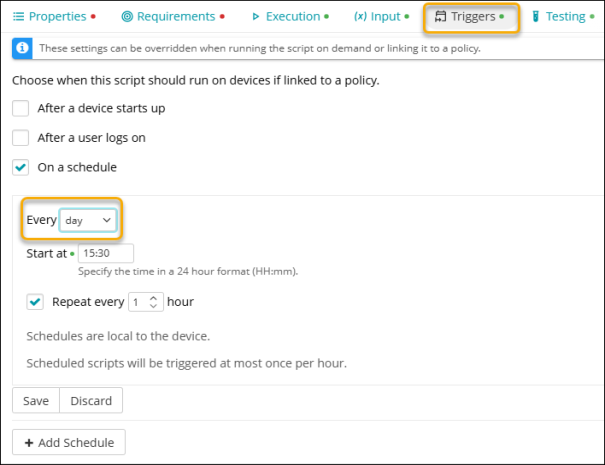
- Daily Schedule - Specify the time in 24 hour format (HH:mm). The script runs at the configured time every day. If it should repeat, then specify the hours after which the script should be repeated.
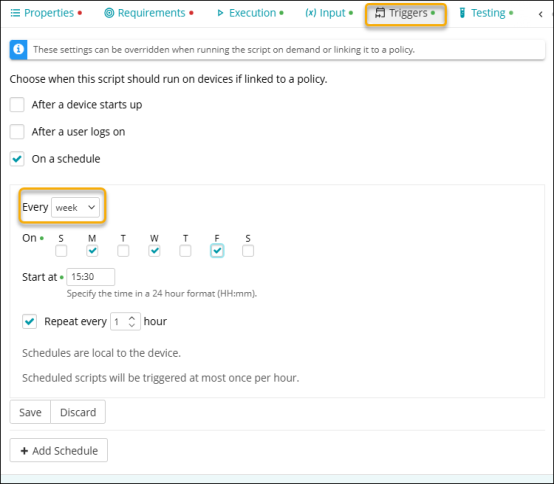
- Weekly Schedule - Select one or more days of the week (for example, Monday, Wednesday, Friday). You must specify the time it should start and if it should repeat, then set the interval in hours for the script to run automatically.
- Monthly Schedule
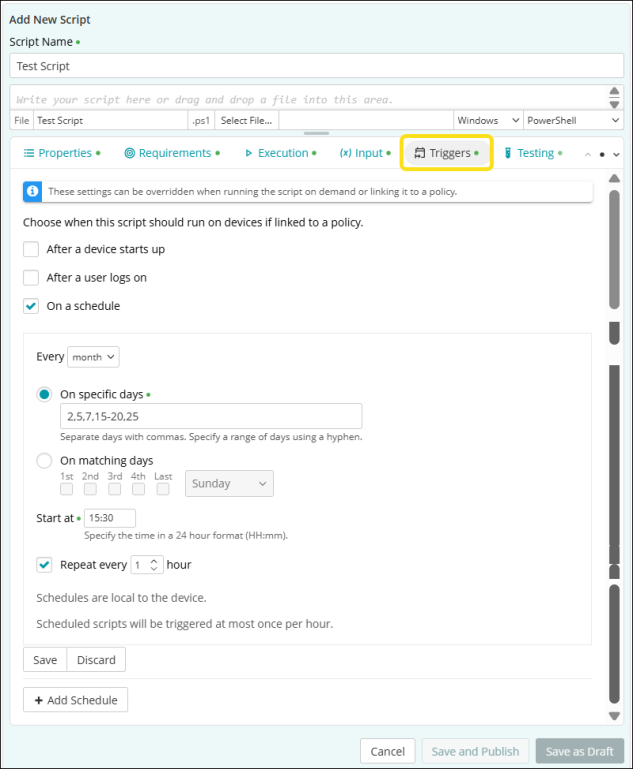
- On specific days – Runs on specific days, for example, 1,15, 28, 10–15. Separate days with commas and hyphens.
- On matching days – Use specific dates or matching patterns. for example, first Wednesday, last Friday
- Start at - (Mandatory) Specify the time to start the trigger in 24-hour format (HH:mm).
- Repeat every - Set the interval at which the script should run regularly.
Rules that Triggers follow:
- Schedules are based on the local device time.
- If a policy is linked to multiple devices, each will follow its local time zone.
- A script can only be triggered once per hour per device, even if multiple schedules are defined.
Before you begin, you must remember the following:
- The Script you are setting triggers for should be in published status. Only the scripts with published status can be linked to a policy and assigned triggers.
- Setting triggers to a script is mandatory. A script must have at least one trigger configured to be deployed using a policy.
- Time must be specified: You must schedule triggers with a start time in 24-hour format (for example,15:45 for 3:45 PM).
- The target device must be online and have the agent installed to receive and execute the script.
| Daily | Weekly |
|
|
| Monthly | |
|
Add Triggers to a script
To add triggers to a script,
- Open an existing script or start creating a script.
- Add or edit the details in the Script Name, Properties, Requirements, Execution, Input sections.
- Click Triggers. Here, you can configure the triggers for a script.
- Select one of the options when the script should run on devices if linked to a policy.
- After device starts up - Select this option if the script should trigger when a device starts.
- After user logon - Select this option if the script should trigger when a user logs on to the system.
- On a schedule - Select this option if the script should trigger on a desired schedule. You need to configure the time and recurrence for the script to run.
- If you select Every Day
- Start at - Specify the time in 24-hour format (HH:mm).
- Repeat every - (Optional) Set the interval in hours for the script to run automatically.
- If you select
Every Week
- On - Select one or more days of the week (for example, Monday, Wednesday, Friday).
- Start at - Specify the time in 24-hour format (HH:mm).
- Repeat every - (Optional) Set the interval in hours for the script to run automatically.
- If you select Every Month
- On specific days – Runs on specific days, for example, 1, 15, 28, 10–15. Separate days with commas and hyphens.
- On matching days - Using specific dates or matching patterns. for example, first Wednesday, last Friday
- Start at - Specify the time to start the trigger in 24-hour format (HH:mm).
- Repeat every - Set the interval in hours for the script to run automatically.
- If you select Every Day
- Click Save to apply the schedule. Or Click Discard.
- Add Schedule - (Optional) Click this option to add another schedule to run the script.
- Click Save and Publish or Save as Draft.
The schedule gets added to the script.